Swimming Club Manager help
First-time setup
What to gather before you start, then the setup steps, done once by the results secretary in order; allow about an hour.
Before you start
You need a Google account, a computer with Chrome, Edge or Safari (setup is not practical on a phone), and the information below. Gather it first and setup takes about an hour.
- A Google account for the club (a shared club account is better than a personal one, so the sheet stays with the club)
- Club name, a short name or initials, and club colours
- Club logo as a PNG or JPG under 200 KB (optional)
- Season start date and the age cutoff date (the date ages are worked out on, e.g. 30 September)
- How you group swimmers: age groups (Under 9, Under 10 …) or your own groups, with their age ranges
- How you race: handicap, seeded by time or scratch, and how many lanes your pool has
- Your points for 1st, 2nd, 3rd, unplaced and time trials
- Your list of events (distances and strokes, plus anything special such as a 30m sprint or an ocean swim)
- The season calendar: dates and each meet’s events in order
- Championship days, events and age bands (optional)
- Swimmer list: name, gender, date of birth, financial (paid) status; phone and email if you keep them
Permissions. The first time you use the menu, Google asks you to allow the tool to see and edit this spreadsheet, show menus and panels, and save PDF copies of race sheets to your Google Drive. The add-on edition can only open files it created itself; the Start Here tab shows what the screen looks like. Choose Allow.
Part 2 – First-time setup, step by step
Setup is done once, by the results secretary, in this order. The Start Here tab lists the same steps and ticks each one off as you complete it, so you can stop and come back at any point.
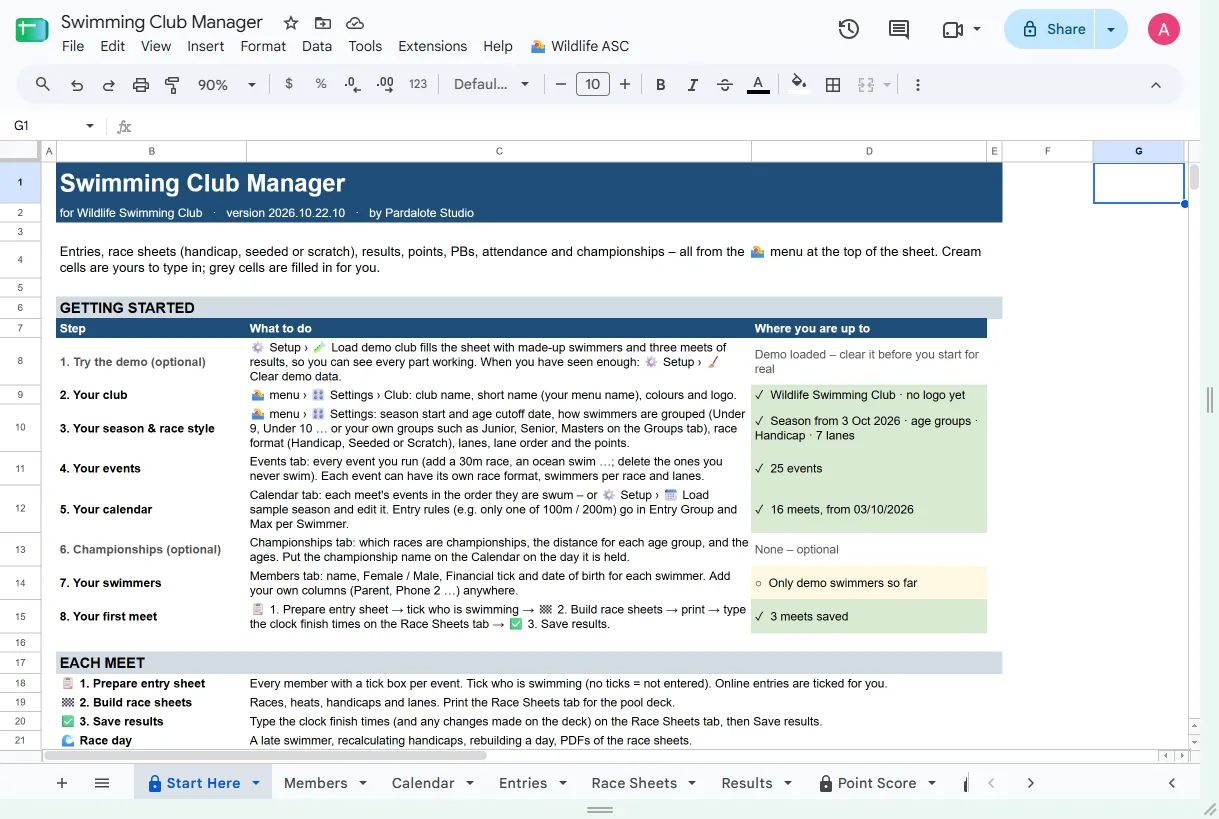
Step 1 – Get the sheet
- Add-on edition: install Swimming Club Manager from the Google Workspace Marketplace, create a new Google Sheet (sheets.new) and name it, e.g. “Freshwater ASC 2026/27”. The menu is under Extensions › Swimming Club Manager.
- Club’s own copy: open the copy Pardalote Studio set up for you. The menu appears along the top as 🏊 followed by the club’s short name (allow a few seconds after the sheet opens).
Step 2 – Set the sheet’s region
- File › Settings.
- Locale = Australia (dates read as dd/mm/yyyy).
- Time zone = your local time, e.g. (GMT+10:00) Sydney.
- Save settings.
Do this before typing any dates; a wrong locale swaps days and months.
Step 3 – First run
- Click 🏊 menu › 🚀 Get started (the first item in the menu).
- Approve Google’s permission screen (Before you start explains it).
- A welcome window offers two buttons. Set up my club builds all the tabs, checks and dropdowns, then opens the Start Here checklist and the Settings panel. Try it with a demo club builds the sheet and fills it with the demo club (Step 4).
Nothing needs to be typed for this step. If a tab, column or check is ever missing later, ⚙️ Setup › 🛠️ Repair sheets puts it back without touching your data.
Step 4 – Try the demo (optional, 15 minutes)
- ⚙️ Setup › 🧪 Load demo club (or Try it with a demo club in the welcome window) adds 15 made-up swimmers named after Australian animals (Jonny Kangaroo, Betty Bunyip …), a sample season and three meets of results.
- Look through Race Sheets, Point Score, Point Tally, PB Board and Attendance to see finished output.
- Try one meet yourself using the three weekly steps (Part 3).
- ⚙️ Setup › 🧹 Clear demo data removes only the demo swimmers, their results and reports.
Step 5 – Club settings
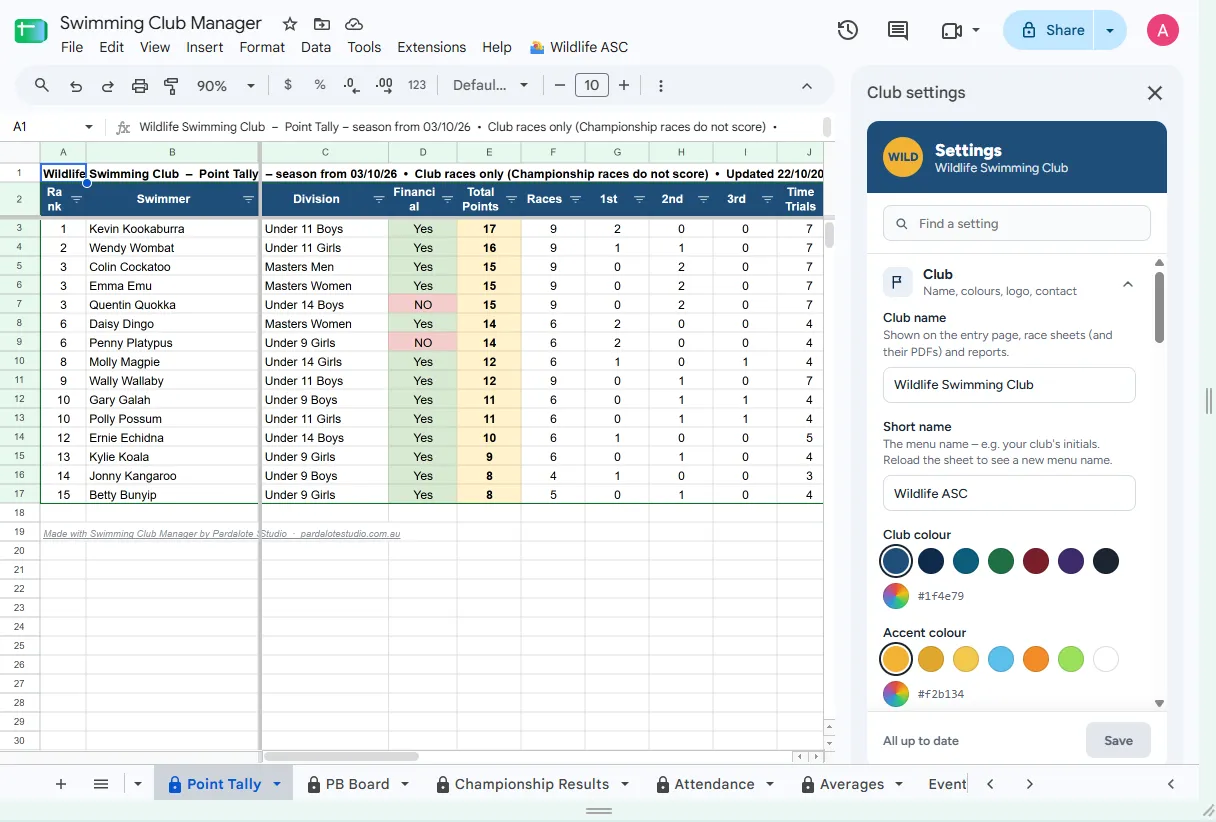
Open 🏊 menu › 🎛️ Settings. The panel opens on the right with folding sections. Change what you need, then press Save at the bottom; nothing changes until you do. If a value is not allowed, nothing is saved and the panel says what to fix. Undo returns to the last saved values. Find a setting searches every setting.
| Section | Set these first | Notes |
|---|---|---|
| Club | Club name, short name, club and accent colours, logo, support email | The short name becomes the menu name after the sheet is reloaded. Logo: PNG or JPG under 200 KB. |
| Races & lanes | Race format, lanes, lane order, max events per swimmer | The lane strip shows which lane gets the fastest swimmer. Centre out = 4, 5, 3, 6, 2, 7, 1, 8. |
| Groups & race names | Group swimmers by, race categories, categories race separately, race names, heats, nobody races alone | Race categories: Female / Open (the default: female swimmers race Female, everyone else Open) or Female / Male (non-binary and prefer-not-to-say swimmers race Open). Race names: Girls / Boys (Women / Men for adult groups) or Female / Male; Open is always Open. |
| Handicaps | Swims to average, rounding | Default: average of the last 2 swims, rounded to 1 s (4.3 → 4, 4.5 → 5). |
| Seeded races | Swimmers per race, seed times from, last race, race order | Only used for seeded events. |
| Point score | Points for 1st, 2nd, 3rd, unplaced, time trial, entry bonus | Default 5, 4, 3, 1, 1, 0. Championship races do not score. |
| Season & championships | Season start, age cutoff date, meets needed, must be financial | Ages, groups and attendance all count from these dates. |
The values are stored on a hidden Settings tab. The link at the foot of the panel shows it, but the panel is the easier way to change them.
Step 6 – Your groups (only if you use your own groups)
If Group swimmers by is My groups, open the Groups tab (the panel’s “Edit on the Groups tab” button) and list each group:
| Column | What to type | Example |
|---|---|---|
| Group | The group’s name | Junior |
| Age From | Youngest age in the group, on the cutoff date | 0 |
| Age To | Oldest age (blank = no upper limit) | 15 |
| Notes | Anything for your own reference | Up to and including 15 |
List groups youngest first; that is the order used in reports. Ages are whole years on the age cutoff date, and both ends are included. A group is treated as adult (Men / Women) when it starts at 18 or over. ⚙️ Setup › ✅ Check my sheet reports gaps and overlaps.
Step 7 – Your events
The Events tab lists every event your club swims. Add your own (a 30m sprint, an ocean swim) and delete the ones you never swim. The order here is the order used in reports.
| Column | What it does | Blank means |
|---|---|---|
| Event | The name used everywhere, e.g. 50m Freestyle | – |
| Distance (m), Stroke | For reference and sorting | – |
| Race Format | Handicap, Seeded by time or Scratch for this event | The club’s race format |
| Max per Race | Most swimmers in one race | The number of lanes |
| Lanes | No = open water / mass start; swimmers are numbered instead | Yes |
| All Ages Together | Yes = one race for every age (still split by gender if set) | A race per group |
| Notes | Your own notes | – |
Step 8 – Your calendar
Either type the season on the Calendar tab, or use ⚙️ Setup › 📆 Load sample season (dated from your season start) and edit it. One row per event per meet, in the order they are swum:
| Column | What to type | Example |
|---|---|---|
| Meet Date | The meet’s date | Sat 03/10/2026 |
| Event | An event from the Events tab (a dropdown), or a championship name | 50m Freestyle |
| Age Group(s) | Blank = every group; or which groups swim it | Under 9, Under 10 · Junior · All ages Female |
| Race Type | Club or Championship | Club |
| Notes | Shown to you only | – |
| Entry Group | Events on the same day with the same name form a choice | Distance |
| Max per Swimmer | How many of that entry group one swimmer may enter (blank = 1) | 1 |
Example entry rule: 100m Freestyle and 200m Freestyle both in Entry Group “Distance” with Max 1 = each swimmer picks one of the two.
Step 9 – Championships (optional)
On the Championships tab, one row per championship race:
| Column | What to type | Example |
|---|---|---|
| Championship | The championship’s name | Backstroke Age Championship |
| Event | The race swum by this age band | 25m Backstroke |
| Age Group | The label for the band | 7 years |
| Age From / Age To | Ages included, on the cutoff date | 7 / 7 |
| Active | Tick to use this row | ☑ |
| Notes | Your own notes | – |
Then put the championship’s name on the Calendar on the day it is held, with Race Type Championship. Each swimmer is placed in the right race for their age automatically.
Step 10 – Your swimmers
On the Members tab, one row per swimmer. You can paste a list from another spreadsheet into the cream columns.
| Column | Who fills it | Notes |
|---|---|---|
| ID | The sheet | M001, M002 … given automatically. Never reuse or retype. |
| Swimmer Name | You | One spelling, used everywhere. Avoid two swimmers with the same name (add an initial). |
| Gender | You | Female, Male, Non-binary or Prefer not to say (dropdown) |
| Financial | You | Tick when fees are paid |
| Date Paid | You | Optional |
| Date of Birth | You | Needed for every swimmer |
| Age at Cutoff, Age Category | The sheet | Worked out from date of birth and the cutoff date |
| Phone, Email, Notes | You | Optional |
Cream cells are for typing; grey cells are filled in for you. You can add your own columns anywhere and rename tabs; the sheet finds its columns by their headings, so keep the standard headings as they are.
Step 11 – Online entries (club’s own copy only)
The club’s own copy can have an online entry page where parents enter their children. It needs a one-off web-app setup by Pardalote Studio or the sheet owner. Once set up, add the page’s link and a club code in 🎛️ Settings › Online entries, and share the link and code with members only. The add-on edition has no online entry page.
Step 12 – Check and share
- ⚙️ Setup › ✅ Check my sheet lists anything that looks wrong: swimmers without a gender or date of birth, duplicate names, calendar events that don’t exist, group gaps. Items marked 🔧 can be fixed for you after you say Yes.
- Check the Start Here tab: every required step should show a tick.
- Share the sheet (Share, top right) with helpers: Editor for anyone who will run meets, Viewer for everyone else.
Setup is complete. Part 3 is the routine for every meet.